
I bought a gaming monitor last year. It looked great on paper. Then I hooked it up and felt like I was playing through fog.
You know that sinking feeling when your GPU is screaming but your screen just… won’t keep up? Yeah. That’s not your PC’s fault.
It’s the monitor.
Choosing one feels like decoding alien tech. Refresh rate. Response time.
Adaptive sync. VRR. G-Sync.
FreeSync. Who decided this needed its own dictionary?
A good monitor doesn’t just show the game. It changes how the game feels. Smaller input lag means you react faster.
Higher refresh rate means motion stays clean. Wrong panel type? You’ll miss details in shadows (or) get ghosting during fast turns.
This isn’t about specs for the sake of specs. It’s about matching the screen to your setup. Your GPU.
Your games. Your desk space. Your budget.
You don’t need every feature.
You need the right ones.
That’s what this Guide to Gaming Monitors Pmwgamestation is for. By the end, you’ll know exactly which numbers matter. And which ones are just noise.
No jargon. No fluff. Just clear answers.
Screen Size and Resolution: What Actually Matters
I measure screen size diagonally. Not width. Not height.
Diagonal. (Yes, it’s weird.)
You’ll see 24-inch, 27-inch, and 32-inch monitors everywhere. 24-inch fits tight desks and works fine for fast-paced games. 27-it gives breathing room without stretching your neck. 32-inch? Only go there if you sit back at least three feet (and) have the GPU to feed it.
Resolution is just pixel count. 1080p = 1920 × 1080 pixels. 1440p = 2560 × 1440. 4K = 3840 × 2160. More pixels = sharper text, crisper edges (but) your graphics card has to push all of them.
A weak GPU on 4K feels like watching paint dry. You’re not stupid (you’ve) felt that stutter. So match resolution to what your PC can actually handle.
Budget or esports? Stick with 1080p. Mid-range build? 1440p hits the sweet spot.
High-end rig with an RTX 4080 or better? Then 4K makes sense.
Want a real-world starting point? Check the Guide to Gaming Monitors Pmwgamestation (it) cuts past the noise.
You don’t need 4K to enjoy a game. You do need resolution and size that match how you sit, play, and what your hardware pulls off. That’s it.
Speed Isn’t Just a Number
Refresh rate is how many times per second your screen redraws the image. Measured in Hz. A 60Hz screen updates 60 times.
A 144Hz screen does it 144 times.
You feel the difference before you see it. In fast shooters or racing games, 60Hz feels sluggish. Like watching through syrup.
(I switched from 60Hz to 144Hz and couldn’t go back.)
Response time is how fast a pixel changes color. Measured in ms. Lower is better. 1ms means pixels flip almost instantly. 5ms means they drag just enough to blur motion.
Ghosting happens when pixels can’t keep up. You see faint trails behind moving objects. It’s not your eyes (it’s) the panel lagging.
So what should you actually buy? For serious gaming: 144Hz minimum. Response time at or under 5ms.
For competitive play? Aim for 1ms. Not optional.
Required.
Some brands advertise “1ms MPRT”. That’s fake. It’s motion blur reduction, not real pixel response.
Check the GTG spec. Always.
OLED panels now hit 0.1ms. But they’re expensive and risk burn-in. IPS is still the sweet spot for most people.
You don’t need 360Hz unless you’re pro-tier. Or chasing specs over sense. (Most of us aren’t.)
This isn’t about chasing numbers. It’s about cutting delay between your brain and the screen.
The Guide to Gaming Monitors Pmwgamestation covers all this without the hype. No fluff. Just what works.
IPS, VA, TN: Stop Believing the Hype
I’ve bought six monitors in five years.
And I still get asked which panel type is “best.”
It’s not.
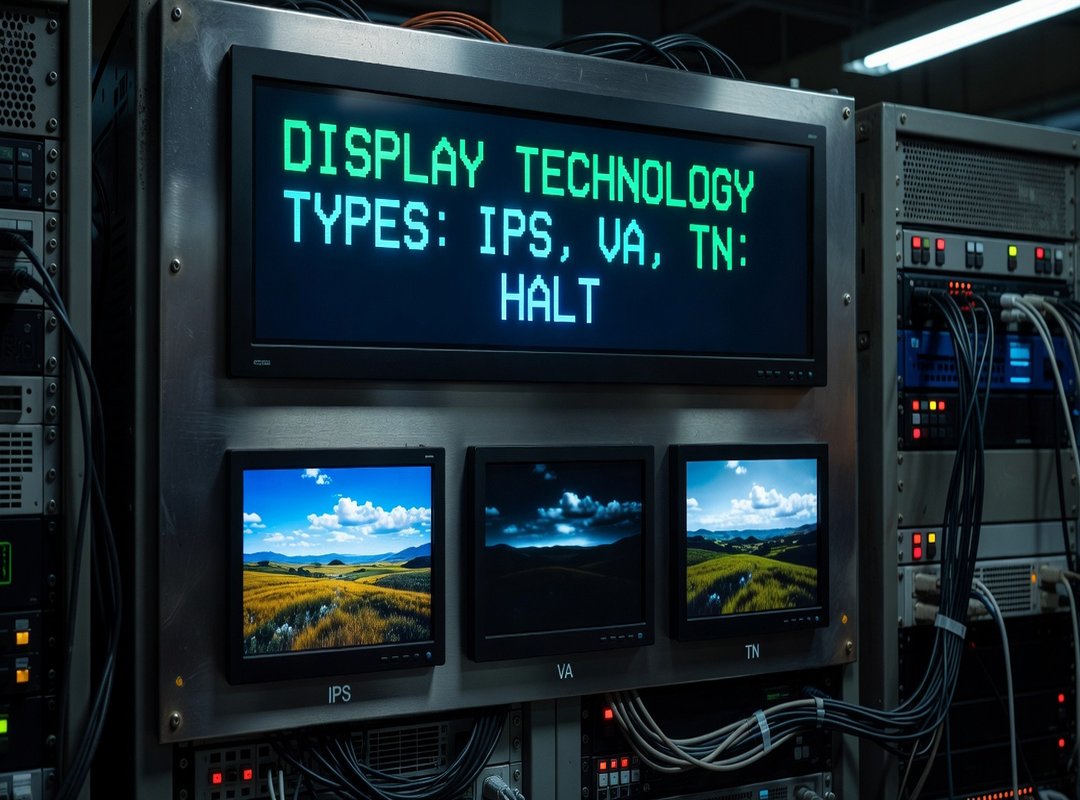
TN panels are fast. Like, blisteringly fast. But colors wash out if you tilt your head.
(Try watching Netflix sideways. You’ll see what I mean.)
They’re cheap. They’re fine for competitive shooters.
If you care more about ghosting than whether that red looks like blood or ketchup.
IPS panels look great from any angle. Colors stay accurate even at 89 degrees. But response times lag just enough to annoy me in fast platformers.
(Yes, I notice.)
VA panels? They nail contrast. Blacks look deep.
But motion blur creeps in during rapid pans. And off-angle color shift is real (just) not as bad as TN.
You want speed? TN still wins. You want immersion?
Go IPS or VA. You want balance? VA’s your middle child (and) it’s tired of being ignored.
The Guide to Gaming Monitors Pmwgamestation doesn’t hand you a ranking. It helps you pick based on what you actually do. Like how Hacks for Gaming Pmwgamestation skip the specs theater and go straight to real-world tweaks.
What’s your priority right now. Speed, color, or contrast?
Screen Tearing Ruins Games. Here’s How to Stop It.
Screen tearing is when the monitor shows parts of multiple frames at once. You see a jagged split across the screen mid-game. It breaks focus.
It feels wrong.
I hate it. You hate it. Everyone hates it.
Adaptive sync fixes this. G-Sync and FreeSync both sync your monitor’s refresh rate to your GPU’s frame rate. No more mismatch.
No more tear.
G-Sync needs an NVIDIA GPU. FreeSync needs an AMD GPU. But here’s the twist: many FreeSync monitors now work with NVIDIA cards too (they’re) labeled “G-Sync Compatible.” Don’t assume.
Check the label.
Your GPU decides your option. Not your budget. Not your brand loyalty.
Your card.
You’re building a rig, right? Or upgrading? Then you already know what GPU you’ve got (or) plan to get.
Match that first. Everything else follows.
This is part of the Guide to Gaming Monitors Pmwgamestation. No fluff. Just what works.
If you’re still picking parts, start with the How to build a gaming pc pmwgamestation guide. It’ll save you time (and) a bad monitor choice.
Your Monitor Is Waiting
I picked my last monitor blind. Wasted money. Felt stuck.
You know that feeling.
You came here because specs confused you. Not because you love reading datasheets. You just want games to look sharp and move smooth.
Resolution tells you how crisp it looks. Refresh rate tells you how fluid it feels. Response time tells you if ghosts trail your crosshair.
Panel type? That’s where color and speed fight for attention. Adaptive sync?
That’s the fix for screen tearing. No more jagged edges mid-fight.
You don’t need every spec maxed out. You need what fits your setup. What games do you play most?
What GPU do you own? What’s your budget?
Make a list. Just three things. Not ten.
Not five. Three. Like: fastest possible for Apex, or 4K colors for Elden Ring, or 1440p sweet spot for my RTX 4070.
That list kills the noise.
It turns confusion into confidence.
You already know what matters now. No more guessing. No more second-guessing.
Go pick your monitor. Today. Not next week.
Not after “just one more review.”
Guide to Gaming Monitors Pmwgamestation got you this far. Now go try one in person. Or click buy.
And feel the difference before the first match loads.
Your games deserve better.
You do too.