
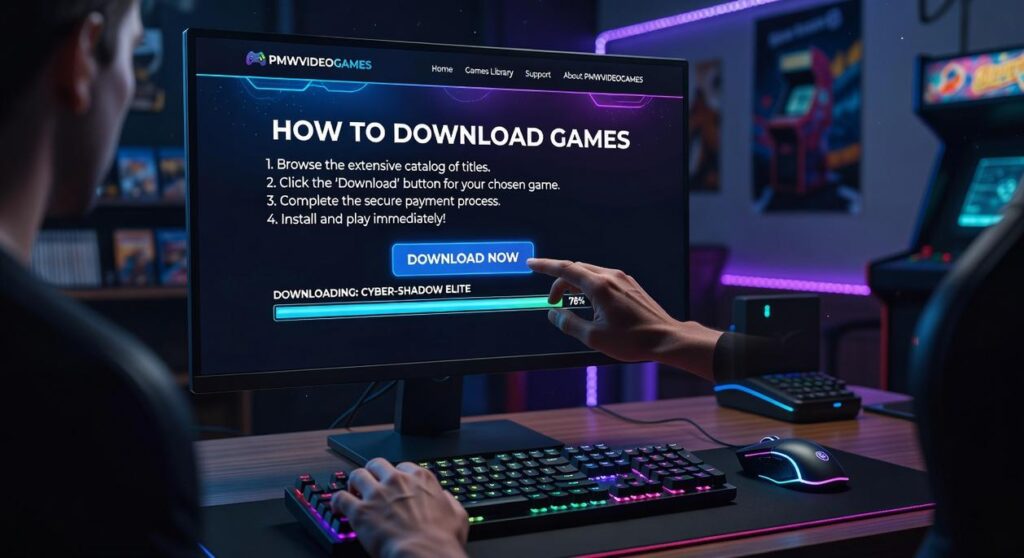
I know you want to start playing games from PMW without dealing with confusing steps or worrying about messing something up.
You’re in the right place.
This is the official guide on how to download games pmwvideogames. No third-party sites. No guessing. Just the exact process we built for you.
I’ve seen people struggle with downloads because they’re following outdated tutorials or random forum posts. That ends here.
We’re giving you the direct steps from the source. This is how our system works, how our launcher functions, and how you get games installed correctly the first time.
You’ll learn how to set up your account, buy games, and get them running on your system. No technical jargon. No skipped steps.
By the time you finish reading, you’ll know exactly what to click and when to click it.
Let’s get you gaming.
Before You Download: A Quick Pre-Flight Checklist
You’re ready to grab that new game.
But hold on a second.
I’ve seen too many people hit download without checking the basics first. Then they wonder why the game won’t run or why their download keeps failing at 87%.
Let me walk you through what you need to check before you start.
Check System Requirements
Every game page on pmwvideogames shows minimum and recommended specs. You’ll find them in the game details section.
Here’s what those specs actually mean.
Your GPU (graphics card) handles what you see on screen. A weak GPU means low framerates and choppy gameplay. Your CPU (processor) runs the game’s logic and physics. RAM is your system’s working memory.
Minimum specs? That’s the bare bones to launch the game. Recommended specs mean you’ll actually enjoy playing it.
Ensure Stable Internet Connection
Download speed isn’t the same as stability.
You might have fast internet but if it drops every few minutes, you’re going to corrupt your game files. I’ve learned this the hard way.
Use a wired connection for large downloads. WiFi is convenient but it’s not reliable enough when you’re pulling down 50GB files.
Verify Available Storage Space
On Windows, open File Explorer and click “This PC.” You’ll see how much space each drive has left.
Mac users can click the Apple menu, then “About This Mac,” then “Storage.”
Don’t just check if the game fits. You need extra room for updates and patches that’ll come later. If a game needs 60GB, I keep at least 80GB free.
Update Your Graphics Drivers
Outdated drivers cause crashes and poor performance (sometimes they’re the only reason a game won’t launch).
NVIDIA users go to nvidia.com/drivers. AMD users head to amd.com/support. Intel users visit intel.com/content/www/us/en/download-center.
Download and install the latest version before you start any game.
Now you’re thinking, what happens after I download?
You’ll want to know how to download games pmwvideogames actually stores on your system and where to find the installation folder. Most games let you choose during setup but some don’t. Keep track of where your games live so you can manage mods or troubleshoot issues later.
The Step-by-Step Guide to Downloading Your Game
Look, I know downloading games should be simple.
But if you’re new to PC gaming or just picked up your first title from PMW, you might be staring at the screen wondering where to even start.
I’m going to walk you through exactly how to download games pmwvideogames so you can get playing without the headache.
Step 1: Creating Your PMW Account
First things first. You need an account.
Head to the PMW website and click the sign-up button. You’ll enter your email, pick a username, and create a password.
Here’s what matters. Don’t reuse a password from another site. I mean it. Your account holds your game library and payment info.
Once you’re in, turn on Two-Factor Authentication (2FA). It’s usually in your account settings under security. This means even if someone gets your password, they can’t access your account without your phone.
Takes two minutes. Worth it.
Step 2: Finding Your Game
Now you’re logged in and ready to shop.
The search bar is your friend. Type in the game title and hit enter. But if you’re just browsing, check out the genre tabs or the best-sellers section.
See something you like but not ready to buy? Add it to your wishlist. PMW will email you when it goes on sale (and trust me, that’s when you want to grab it).
Step 3: Making Your Purchase
Found your game? Click it and hit “Add to Cart.”
Before you check out, look for any discount codes. There’s usually a box right above the payment section. Enter your code and watch the price drop.
Pick your payment method. PMW accepts credit cards, PayPal, and a few other options. Your payment info is encrypted, so you’re covered.
Hit purchase and you’re done.
Step 4: Download and Install
Here’s where people get confused.
You bought the game on the website. But you download it through the PMW Launcher. Different things.
Download the launcher from your account page if you haven’t already. Install it, then log in with the same credentials you just created.
Click on “My Library.” Your new game should be sitting right there.
Hit the download button. You can pause it if you need to (maybe your internet is slow or you want to play multiplayer games pmwvideogames first). Just click resume when you’re ready.
Once it’s done, the download button turns into a play button.
That’s it. You’re in.
Managing Your PMW Game Library
Your game library needs maintenance.
I’m not talking about anything complicated. Just basic upkeep that keeps everything running smooth and saves you headaches later.
Most people don’t think about this stuff until something breaks. Then they’re stuck redownloading 100GB because they didn’t know about the repair tool.
Let me show you how to actually manage your library.
Keeping Games Updated
The PMW launcher handles updates on its own. When you open it, the system checks for new patches and downloads them in the background.
You don’t need to do anything.
But sometimes you want to force a check. Maybe you heard about a new update and don’t want to wait. Just right-click the game in your library and select “Check for Updates.”
It takes five seconds.
Verifying Game File Integrity
This is the tool that’ll save you hours of frustration.
Game acting weird? Crashes on startup? Textures looking broken?
Before you reinstall the whole thing, try the Verify/Repair function. Right-click your game and select it from the menu. The launcher scans every file and replaces only the corrupted ones.
I’ve used this dozens of times. It works.
You keep your saves, your settings, and most importantly, you don’t waste bandwidth redownloading files that were fine to begin with. Once you know how to download games pmwvideogames, keeping them healthy is just as important.
Uninstalling a Game
When you need space, uninstall through the launcher. Not through Windows.
Right-click the game and hit “Uninstall.” The launcher removes everything cleanly. No leftover files hiding in random folders eating up your drive.
(Trust me, manual deletion leaves a mess.)
Your library stays organized. Your disk space actually frees up.
That’s it. Three simple habits that keep your games working right.
Troubleshooting Common Download Issues
Your game download hits 47% and just stops.
You wait. You refresh. Nothing changes.
I’ve been there. Most gaming sites will tell you to “just restart your PC” and call it a day. But that’s lazy advice that wastes your time.
Here’s what actually works.
Download Stuck at 0% or Won’t Move
First thing I do? Restart the launcher. Not your whole computer. Just close the app completely (check your system tray) and reopen it.
Still stuck? Your firewall is probably blocking the connection. Go into Windows Defender or whatever antivirus you’re running and add an exception for the game launcher.
One more fix most people miss: clear your download cache. Every launcher has this option buried in settings. It forces a fresh start without losing your progress.
Slow Download Speeds
Check what else is running. Streaming services and cloud backups will choke your bandwidth without you noticing.
Some launchers let you switch server regions. If you’re downloading at 2 MB/s when you should be getting 50, try a different server location.
And yeah, I know this sounds obvious, but confirm your actual internet speed. Run a quick test. Your plan might not be what you think it is.
| Issue | Quick Fix |
|———–|—————|
| Download frozen | Clear cache, restart launcher |
| Slow speeds | Close background apps, switch servers |
| Installation fails | Free up disk space, check permissions |
Installation Failed Errors
Nine times out of ten? You’re out of disk space. Games are huge now. Check before you start.
The other common culprit is permissions. Run your launcher as administrator (right click, you know the drill).
Security software loves to flag game files as suspicious. Temporarily disable it during installation if nothing else works.
When you learn how to download games pmwvideogames the right way, these problems become rare. But when they do pop up, you’ll know exactly what to do.
You’re Ready to Play
You now have the complete process for legally downloading and managing your games from the official PMW Video Games platform.
No more guessing. No more sketchy sites that might brick your system or fill it with malware.
I showed you a clear path because uncertainty shouldn’t be part of gaming. You wanted to know how to download games pmwvideogames the right way, and now you do.
Following these official steps keeps your games authentic and up to date. Your installations work correctly. You get the experience developers intended without the headaches.
Here’s what happens next: Head over to your PMW Game Library and start your download. Or browse the store if you’re hunting for your next favorite game.
You’ve got this. The hard part is choosing what to play first.